Punch-In Zoom Hook: What It Is and How to Use It
Also called: Crash zoom, Snap zoom, Fast zoom-in, Dynamic crop opener
You sell a face serum from your kitchen table. Your video opens on the bottle, but the word that matters most is the ingredient on the label, and it is far too small to read. Viewers scroll past before they ever see it. Now try the same clip with one change. In the first second, the frame snaps tight onto that ingredient. The eye has nowhere else to go.
That snap is the punch-in zoom hook. This guide covers what it is, why it works, and how to build it in any editor. You also get a formula you can copy, examples for brands and creators, and ways to use it in Reels, TikTok and video ads without making every clip shaky.
What is a punch-in zoom hook?
A punch-in zoom hook is a fast jump from a wider shot to a tighter shot in the first second. It lands on one key detail, word or face, so the viewer looks exactly where you want.
You start with a normal, readable frame. Then the image jumps closer in one quick move, with no slow drift in between. You can move the camera, use your lens, or scale a sharp clip in your editor. The zoom is not the message. It points at the message: read this label, see this texture, hear this line. Picture a creator saying, 'Here's the part nobody tells you.' On the word 'nobody', the frame snaps onto their face. Used at the start, the move stops the scroll. Used once more later, it can stress one key word.
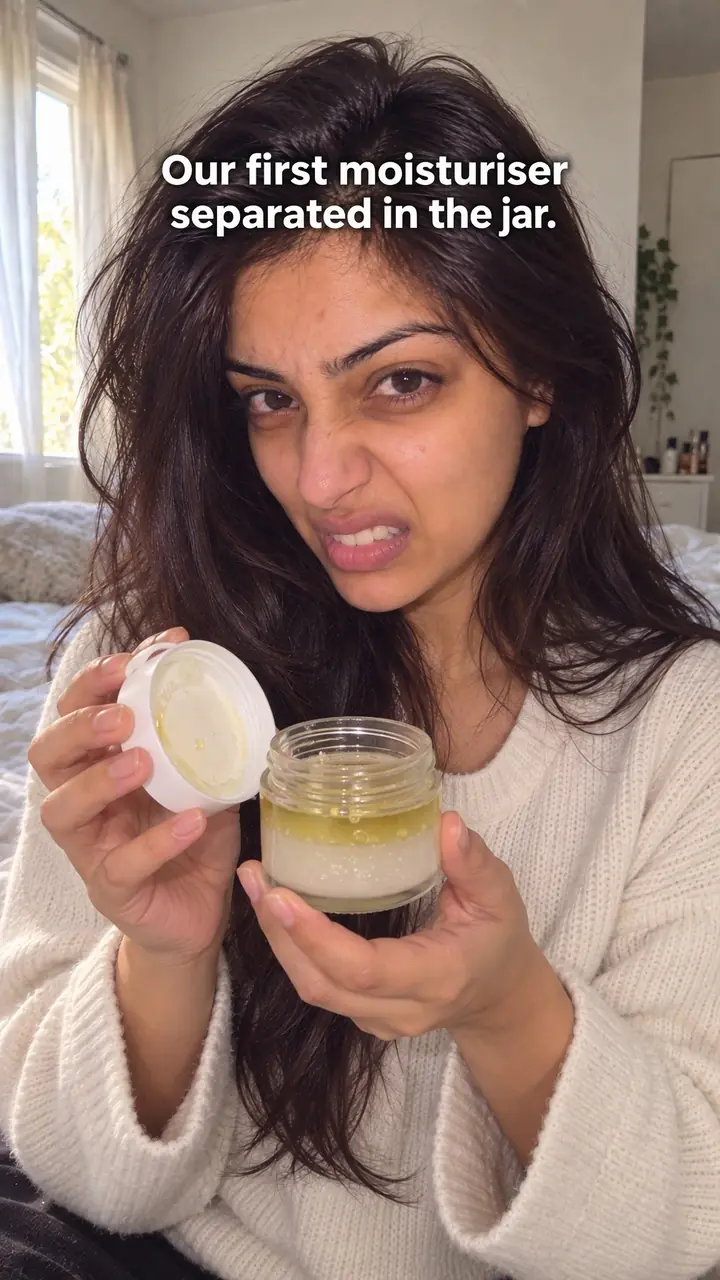
Punch-in zoom hook, in pictures
Why it works
- Sudden movement can draw attention
- A quick change from a wider frame to a tighter one can draw attention to the image. Whether viewers notice or keep watching also depends on the subject, surrounding content and clarity of the detail.
- Tighter framing can reduce distractions
- Cropping out unrelated objects can make a label, texture or expression easier to notice. Leave enough context for viewers to understand what they are seeing, and hold the frame long enough to read any text.
- A punch-in can signal emphasis
- A fast move closer can work like a stressed word in speech, suggesting that a detail matters. Repeating it too often may weaken that emphasis, and the edit itself does not establish that a claim is true.
The formula
- Open wide for a split second, so the viewer knows what they are looking at.
- Choose one detail that proves your point: a label, texture, price, result or face.
- Snap to the tight frame in a few frames. No slow creep.
- Hold the tight frame long enough to read or register the detail.
- Land one sound, word or text label on the exact frame the zoom stops.
[Wide shot of product or person] → snap zoom onto [one detail] in the first second → hold for [beats] → say or show: '[key word, claim or label]' + [whoosh or tap on the landing frame].How to use it
- Pick the landing detail first
Write down the one thing the viewer must notice: a word on a label, a texture, a price tag or a reaction. If you cannot name it in a few words, you are not ready to frame the shot.
- Frame the wide shot
Start at a distance where the product, person and setting make sense. Keep the landing detail near the centre. Then it stays in view as you scale up, and you do not need to pan too.
- Shoot clean and sharp
Use the best light and focus you have. A tight crop makes blur and noise easier to see. Tap to focus on the detail, lock focus if your phone allows it, and wipe the lens before you record.
- Add the punch-in in editing
Set a keyframe at normal scale at the start. Move forward a few frames, set a second keyframe and scale up to [your zoom level]. Or cut straight from the wide clip to a tighter clip of the same moment.
- Match sound to the move
Place a short whoosh, tap or click on the exact frame where the zoom lands. Keep it low under speech, so it marks the move without covering your first words or the product's own sound.
- Fit it to the format
On TikTok and Reels, land the zoom inside the first second and keep the detail clear of captions and buttons. In video ads, zoom onto the proof point, not the logo. For a carousel, copy the effect with a wide first slide and a tightly cropped second slide.
- Check the first seconds
Watch the first two seconds with the sound off. Is it clear what to look at? Then watch with sound on. If the zoom lands late, feels slow or crops out the detail, trim the start and re-centre the frame.
Examples
| Niche | Line | Why it works |
|---|---|---|
| Skincare (DTC) | Bottle on the counter, then snap zoom onto '[ingredient]' on the label. Voice: 'This is the only word you need to read.' | The zoom turns a claim into something the viewer can read for themselves. |
| Fashion (DTC) | Full outfit in the mirror, then punch in on the waistband as your thumb stretches it. Text: '[fit detail]'. | Fit is hard to judge from far away. The zoom shows the part a shopper would check by hand. |
| Food (DTC) | Hot sauce bottle next to a plate, then punch in on the back label. Text: 'Only [number] ingredients.' | A short ingredient list is proof. The zoom makes it readable in one beat. |
| Home (DTC) | Candle lit on a shelf, then snap onto the label line: 'Burns [hours] hours'. | The wide shot sets the mood. The tight shot gives the fact buyers want to know. |
| Accessories (DTC) | Watch on a wrist, then punch in on the clasp as it clicks shut. Text: '[clasp detail]'. | Small parts sell small products. The zoom puts the build quality front and centre. |
| Fitness (DTC) | Resistance band stretched wide, then punch in on the printed tension mark: '[resistance level]'. | The viewer sees the exact spec without pausing the video. |
| Creator advice | Face at normal distance, then snap tight on the key line: 'I stopped doing [common mistake].' | The jump flags this line as the point of the video. Keep your expression clear. |
| Tech tutorial | Phone in hand, then punch in on one setting: 'Turn on [setting name].' Hold so it can be read. | The viewer doesn't have to hunt for the button. You put it right in front of them. |
| Budget and money creator | Receipt on the table, then snap zoom onto the total: '[amount]'. Voice: 'This is what one week cost me.' | A single number on a real object makes the story feel concrete straight away. |
Variations
- Hard cut-in
- Skip the animated scale and cut straight from wide to tight. Use two takes of the same moment, or duplicate the clip at a larger size. It feels sharp and suits a stressed word.
- Punch-out reveal
- Start tight on the detail, then jump back to the wide shot. Use it when the detail raises a question that the wide shot answers, like a strange texture that turns out to be your product.
- Double punch
- Punch in at the open, then once more only when the topic changes. Keep the same centre point both times. A talking-head video gets clear beats without constant motion.
- Zoom plus text pop
- As the zoom lands, one short text label appears beside the detail. The movement grabs the eye and the text confirms what it is looking at. This helps viewers who watch with the sound off.
Common mistakes
- You zoom on every line or feature.
- Fix → Pick the single detail that proves your point. Use one punch-in at the open, and save a second zoom for a clear change of topic.
- Your zoom is slow and looks like a drift.
- Fix → Cut straight to the tighter scale or place your two keyframes close together. The move should feel like a snap. Hold once it lands.
- The tight shot looks soft or pixelated.
- Fix → Shoot at your best quality, keep the detail centred and stay within [your zoom level]. If the image breaks up, move closer and reshoot the tight shot.
- The zoom lands after your key point.
- Fix → Start the move straight away and trim the dead frames before it. In the first second, your words, text and zoom should all point at the same idea.
- You zoom in but the viewer still can't read it.
- Fix → Add one short text label, such as '[detail name]', next to the detail and outside the zoomed area.
When not to use it
- When viewers need to compare two complete views, a tight crop may hide useful context. Consider Comparison (comparison-hook) for two things shown side by side, or Transformation (transformation-hook) for a before-to-after change in one shot.
- When the main value is a tiny surface detail that a digital crop cannot show clearly, consider Extreme close-up (extreme-close-up-hook). Capture a sharp macro shot rather than enlarging footage beyond a usable level.
- When the available footage becomes too soft when cropped and you cannot reshoot, consider Text-first frame (text-first-frame-hook) with a clear, supported message over usable footage. Text should not imply that the image demonstrates something it cannot show.
- When the proposed zoom would present a label or attractive detail as proof of performance, consider Real-world test (real-world-test-hook) if you have a genuine, documented test to report. If you do not, revise or remove the claim; a different hook cannot supply missing evidence.
For brands
For DTC brands, the punch-in zoom makes one product claim quick to check. Zoom onto proof, never just for drama. The shopper should see the detail faster than they could in a still photo. Show the product name clearly before or after the move.
- Label proof: wide pack shot, then snap onto '[ingredient or material]' so shoppers can read it without pausing.
- Price or offer ad: product wide first, then land on '[price or offer]'. Only show a price that matches your landing page.
- Build quality: product in hand, then punch in on the seam, clasp, sole or lid as it moves. Add a short text label naming the part.
- Founder line: film the founder talking, then snap tight on the key sentence about why the product exists. Use it once only.
- Review moment: wide shot of a customer's message on screen, then zoom onto the one line that matters. Only use real reviews you have permission to share.
Pairs well with
- Extreme close-up
The punch-in tells the eye where to look. Cut next to a macro shot of the same spot, so the zoom gives direction and the close-up gives proof.
- Sound cue
Put a short whoosh or tap on the landing frame. The sound gives the move a clear beat and still works under speech.
- Text-first frame
Open with big text naming the claim, then zoom onto the detail that proves it. Read, then see.
- Jump cut
In fast talking-head edits, mix jump cuts with one punch-in on the key line. The cuts keep the pace up and the zoom marks the main point.
FAQs
- What does "punch in" mean in video editing?
- Punch in means jumping to a tighter version of the same shot. It is not a slow zoom. You cut or keyframe from the wide framing to the close one. Editors use it to stress a word, hide a cut or pull your eye to a detail.
- How to do the zoom in effect on reels?
- Film your clip, then add it to your edit and select it. Set a starting keyframe at normal scale. Move a few frames forward, set a second keyframe and scale up to [your zoom level]. Check that the detail stays centred before you export.
- How to do the zoom in thing on TikTok?
- You can zoom while recording or add the move in editing. For a punch-in, editing works better. It is faster and sharper, and it lands on the exact frame you choose.
- How do I zoom in while filming a TikTok?
- Start recording, then on many versions you hold the record button and slide up to zoom in or down to zoom out. Controls change with app version, device and mode, so test before your real take.
- Why can't you zoom in on TikTok anymore?
- Check your mode first. Some effects, video lengths or camera settings limit live zoom. If live zoom isn't available, film the wide shot and add the punch-in in the editor. You also avoid a shaky hand move that way.
- When should you use a punch-in zoom instead of a slow zoom?
- Use a punch-in when one detail proves your point and is hard to see at normal size, like a label, price, result or a face on a key line. Use a slow zoom for mood. Stay wide when the whole frame matters.
Key takeaways
- One fast zoom onto one detail. That focus is the whole hook.
- Choose the landing detail before you film, and keep it near the centre.
- Land the zoom within the first second and hold so people can read.
- Pair the move with a short sound or text label on the landing frame.
- Don't zoom on everything. When every moment is stressed, nothing stands out.